
Table of Contents
Just bought a printer, or sitting in front of one at a new office? This guide walks you through it in plain steps: getting a new printer ready, printing your first page, printing from your phone, and fixing the small problems that stop most people. It's written for the printers people in Bangladesh actually use, like Epson, Canon, HP and Brother ink tank and laser models.
First, which kind of printer do you have?
Almost every home and office printer is one of three kinds. Check yours, because a few steps below are different for each.
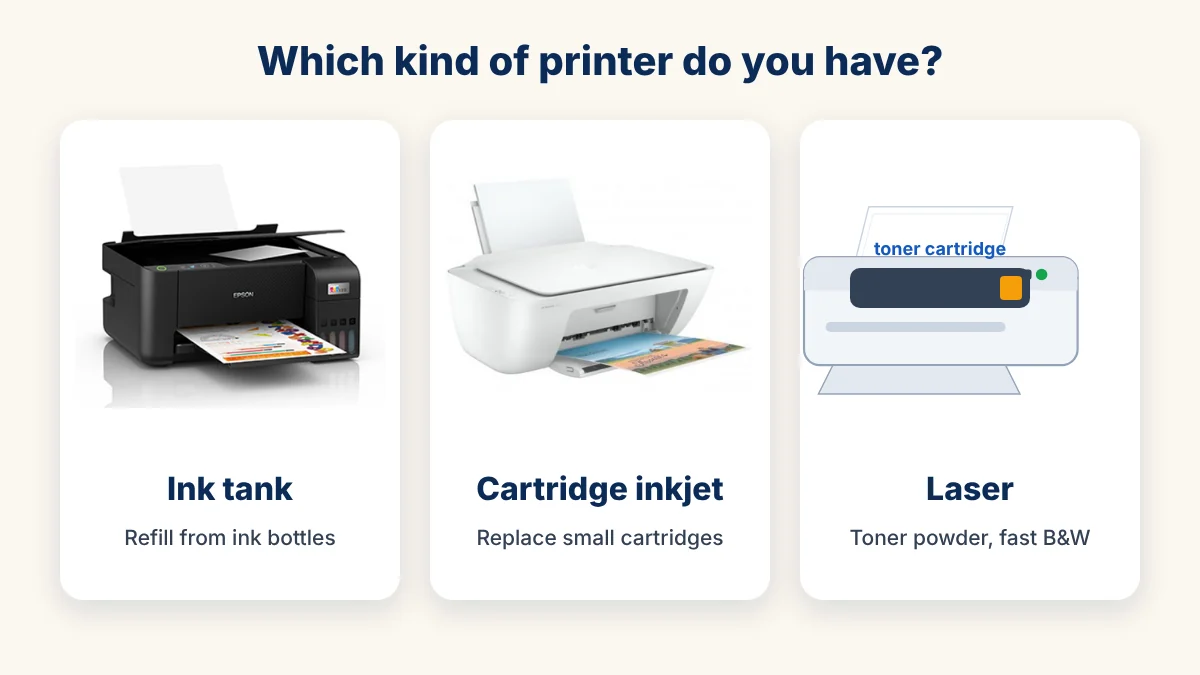
| Kind | How you can tell | Common models | Good for |
|---|---|---|---|
| Ink tank | Clear ink tanks on the side or front, filled from bottles | Epson L-series (EcoTank), Canon PIXMA G-series, HP Smart Tank, Brother DCP-T | Colour printing at low cost per page |
| Cartridge inkjet | Small ink cartridges inside, under the cover | Canon PIXMA (non-G), HP DeskJet | Occasional printing at home |
| Laser | Uses a toner cartridge (powder), usually black only | HP LaserJet, Canon i-SENSYS, Brother HL / DCP-L | Lots of black and white pages, fast |
Day one: getting a new printer ready
- Remove all the tape and packing. New printers have orange or blue tape and foam pieces, some of them inside the cover. Open every cover and check.
- Put it on a flat, steady table near a power socket, away from direct sun and dust.
- Add ink or toner:
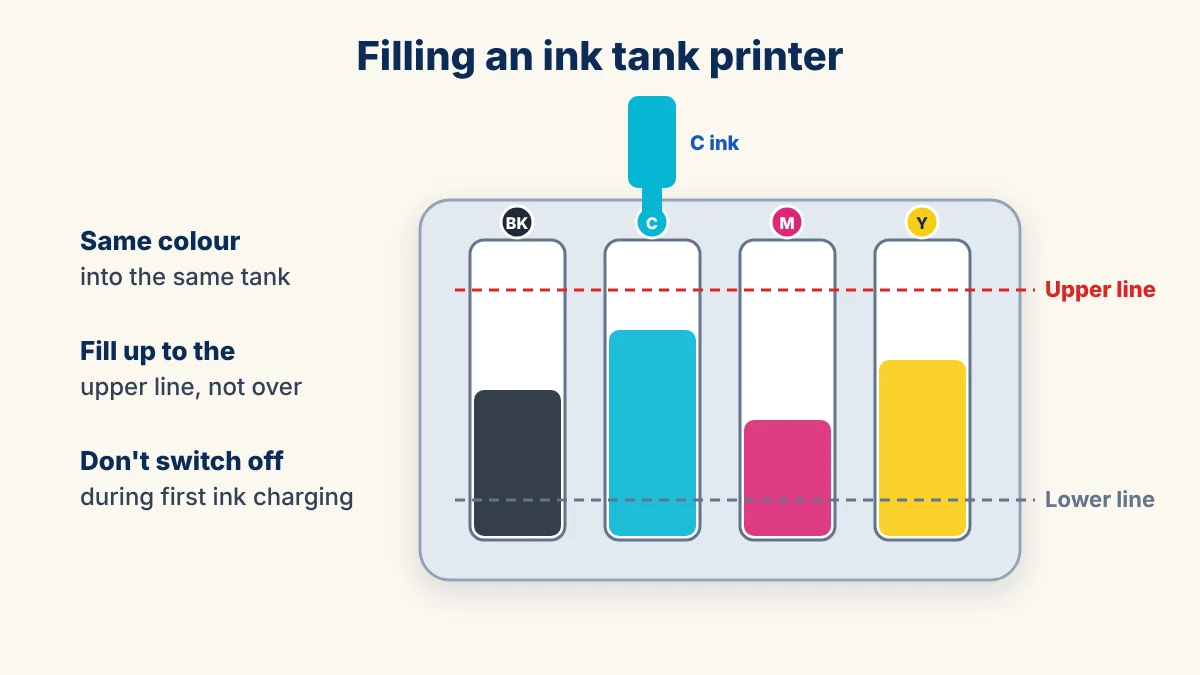
- Ink tank: fill each tank from the bottle of the same colour. On many new models, each bottle only fits its own tank, so you can't mix them up. Fill up to the upper line, not over it.
- Cartridge inkjet: take the cartridge out of its packet, pull off the protective tape, and push it into its slot until it clicks.
- Laser: take the toner out of its bag, gently rock it side to side a few times, pull out the sealing strip if there is one, and slide it in.
- Turn it on and wait. An ink tank printer fills its ink system the first time you switch it on. This takes several minutes and makes noise. Don't switch it off or open it while it works.
- Load paper. Fan a small stack of A4 paper, put it in the tray, and slide the paper guides until they just touch the edges.
- Print a test page from the printer's own buttons or menu (the manual shows which button). If it prints cleanly, the printer itself is fine.
Connect it to your computer
With a USB cable: plug it in and turn the printer on. Windows usually finds the printer and installs it by itself in a minute or two.
With Wi-Fi: connect the printer to your Wi-Fi from its screen or with the brand's free app. Then on the computer, go to Settings → Bluetooth & devices → Printers & scanners → Add device and pick your printer.
If Windows can't find it, download the driver from the printer brand's own website, using your exact model name. Avoid "free driver" download sites, which often bundle unwanted software.
How to print a document
Open the file and press Ctrl + P (on a Mac, Command + P). A print box opens. These are the settings that matter:
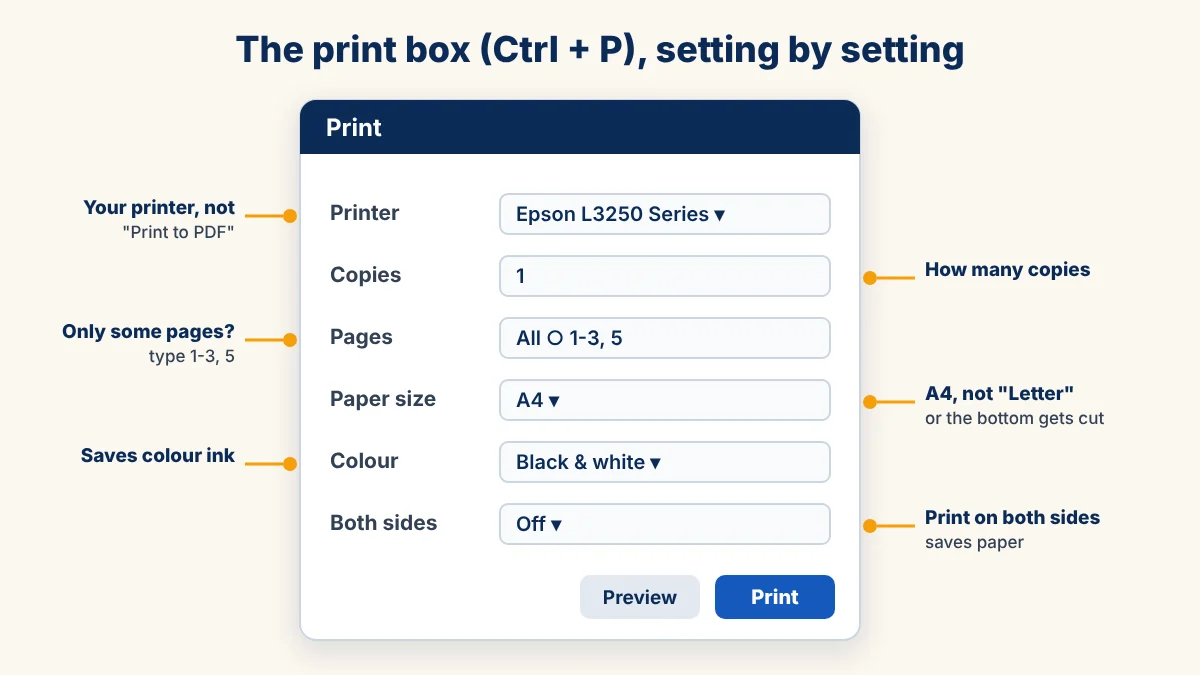
- Printer: make sure your printer's name is selected, not "Microsoft Print to PDF" or another printer.
- Copies: how many copies you need.
- Pages: all pages, or only some. Type 1-3, 5 to print pages 1 to 3 and page 5.
- Paper size: choose A4. Many computers are set to "Letter", the American size. That cuts off the bottom of the page or moves the text.
- Colour: choose black and white (grayscale) for normal documents. It saves colour ink.
- Both sides: printers with automatic two-sided printing do it by themselves. On others, the printer prints one side first and then asks you to turn the pages over and put them back.
Look at the preview, then click Print.
Print from your mobile phone
Most Wi-Fi printers can print straight from a phone. Install your brand's free app (for example Epson Smart Panel, Canon PRINT or the HP app), keep the phone on the same Wi-Fi as the printer, and follow the app. You can print photos, PDFs and documents, and on all-in-one printers you can scan to your phone too.
Copying and scanning on an all-in-one printer
If your printer has a scanner lid on top, it can copy and scan too. To copy, lift the lid, put the page face down on the glass, close the lid and press the Copy or Start button (black or colour). To scan, use the brand's app or the Windows Scan app.
Switch it off with the power button, not the wall switch
On an inkjet printer, when you press the power button, the print head moves to its resting place and gets covered so the ink doesn't dry. If you switch it off at the wall socket while it's still on, that may not happen. Canon's own manual says to make sure the power light is off before you unplug the printer. So: power button first, wait for the light to go off, then the wall switch.
Use it at least once a month
Ink in the tiny nozzles of the print head can dry out if an inkjet printer isn't used for a long time, just like a felt pen left with its cap on. Canon recommends using the printer at least once a month. If you rarely print, print one colour page now and then. Laser printers don't have this problem.
Small problems you can fix yourself
| Problem | Try this |
|---|---|
| Computer says the printer is offline | Turn off the printer and the computer, then on again. Check the cable or that the printer is on the same Wi-Fi. In Printers & scanners, open your printer's print queue and make sure "Use Printer Offline" is not ticked. |
| Print job is stuck and nothing comes out | Open the print queue, cancel all documents, restart the printer, and print again. |
| Print is faded, has white lines or a colour is missing | Check the ink level. Then print a nozzle check from the printer's maintenance menu. If lines are missing, run a head cleaning once or twice, not over and over, because each cleaning uses ink. |
| Bottom of the page is cut off | Set the paper size to A4 in the print box and in the document itself. |
| Paper jam | Turn the printer off. Pull the paper out slowly with both hands, in the direction it travels. Check that no small torn piece is left inside. |
| Lights blinking or an error message | Write down which lights blink or the exact message, and look it up in the manual for your model. |
When it's time for a technician
Call for help if the print is still bad after two head cleanings, the printer says its ink pad or waste ink is full, paper jams again and again, or there's a burning smell or grinding noise. Don't open the printer further yourself, because it can make the damage worse.
At Global IT Solution we repair Epson, Canon, HP and Brother printers. See our printer repair service, or call +88 01310-280-374 and tell us your printer model and what it's doing.
Frequently Asked Questions
What is the difference between an ink tank and a cartridge printer?
Why does my computer say the printer is offline?
Why is the bottom of my printed page cut off?
How often should I use my inkjet printer?
Can I print from my mobile phone?
Is it OK to switch off the printer from the wall socket?

Printer, photocopier and IT service engineers in Mirpur, Dhaka. We write these guides from our everyday repair work.
Comments
No comments yet. Ask a question or share your experience!