Table of Contents
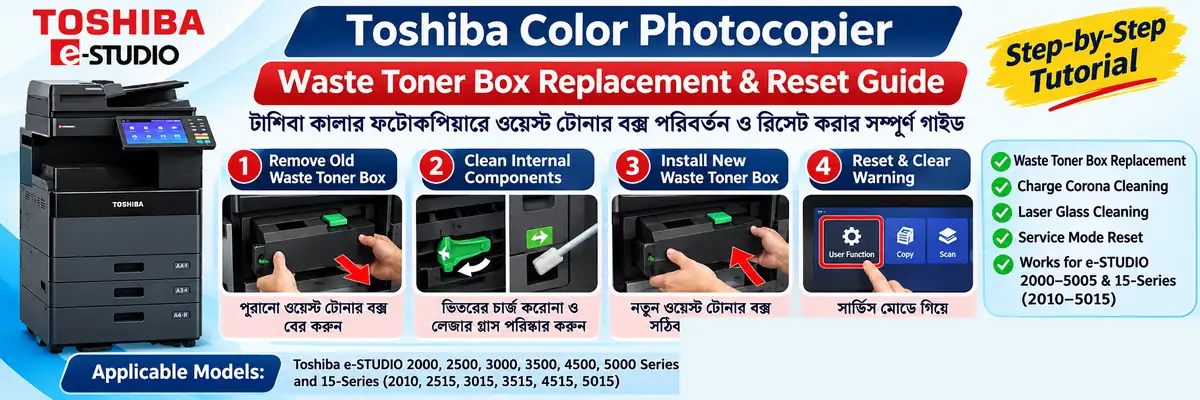
Toshiba Color Photocopier Waste Toner Box Replacement & Reset Guide
Toshiba color photocopiers are widely used in offices, businesses, printing shops, educational institutions, and corporate environments for reliable printing, copying, and scanning. Like other photocopiers, Toshiba e-STUDIO color machines require regular maintenance to maintain print quality and performance.
One of the essential maintenance tasks is replacing the waste toner box. When the waste toner container reaches its capacity or requires replacement, the machine may display a warning message such as "Please prepare new waste toner bottle."
In this guide, we explain how to replace the waste toner box, perform basic cleaning, and troubleshoot waste toner warning messages on compatible Toshiba color photocopiers.
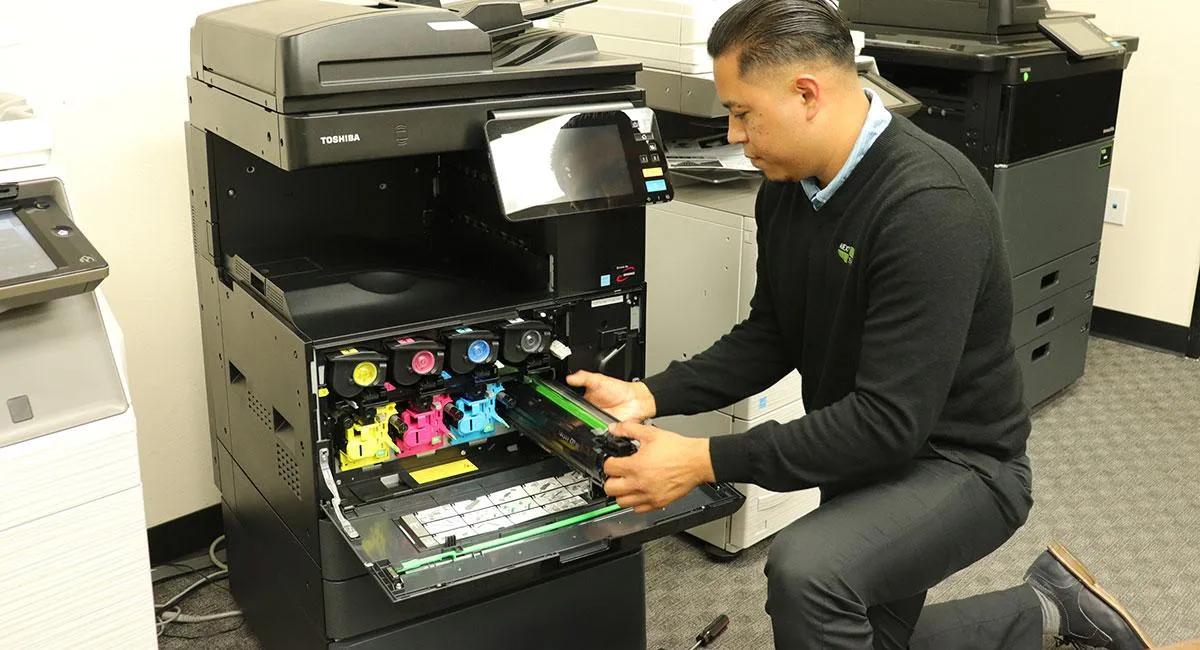
What Is a Waste Toner Box?
A waste toner box, also known as a waste toner bottle or waste toner container, collects excess toner produced during the printing and copying process. During color printing, the photocopier uses four toner colors:
- Cyan (C)
- Magenta (M)
- Yellow (Y)
- Black (K)
Unused toner is collected inside the waste toner container. When the container reaches its capacity or the machine detects a replacement condition, a warning message may appear on the display.
Replacing the waste toner box on time helps prevent toner overflow, internal contamination, and potential printing problems.
Compatible Toshiba Color Photocopier Models
This maintenance guide is relevant to many Toshiba e-STUDIO color photocopier families. However, the exact waste toner box design and maintenance procedure may vary depending on the model and configuration.
- Toshiba e-STUDIO 2000 Series
- Toshiba e-STUDIO 2500 Series
- Toshiba e-STUDIO 3000 Series
- Toshiba e-STUDIO 3500 Series
- Toshiba e-STUDIO 4500 Series
- Toshiba e-STUDIO 5000 Series
- Toshiba e-STUDIO 2010 Series
- Toshiba e-STUDIO 2515 Series
- Toshiba e-STUDIO 3015 Series
- Toshiba e-STUDIO 3515 Series
- Toshiba e-STUDIO 4515 Series
- Toshiba e-STUDIO 5015 Series
Note: Waste toner box compatibility, cleaning points, and service procedures can differ between models. Always verify the exact model number before replacing consumables or performing maintenance.
Step 1: How to Remove the Old Waste Toner Box
Before installing a new waste toner bottle, carefully remove the existing container from your Toshiba color photocopier.
Removal Instructions
- Open the front cover of your Toshiba photocopier.
- Locate the waste toner box inside the machine.
- Hold the waste toner box using the designated finger holes.
- Press the green release tab.
- Pull the waste toner box straight toward you.
- Carefully remove the container without tilting or spilling toner.
- Place the old waste toner box into the disposal bag supplied with the replacement bottle.
Important: Waste toner can easily spill and create a mess. Handle the container carefully and avoid shaking it.
Step 2: Clean the Charge Corona Units
Routine cleaning of the charge corona units may help maintain consistent print quality. Some Toshiba color photocopiers have designated green cleaning levers for this maintenance procedure.
How to Clean the Charge Corona Units
- Locate the green cleaning levers beneath the waste toner box area.
- Pull each green lever outward.
- Push the lever back into its original position.
- Repeat the cleaning movement approximately three times, where applicable.
- Ensure that each lever is returned to its original position.
Regular cleaning may help reduce certain print-quality problems, such as uneven density, lines, or image defects. However, these issues may also be caused by other imaging or machine components.
Step 3: Clean the Laser Glass Units
Dust or toner contamination on laser glass may cause print-quality problems, including lines, faded areas, or uneven images. Cleaning the designated laser glass units is an important maintenance step for compatible Toshiba color photocopiers.
Laser Glass Cleaning Instructions
- Locate the laser glass cleaning stick inside the front door.
- Remove the cleaning stick from its holder.
- Identify the designated laser glass cleaning slots.
- Insert the cleaning stick gently into each designated slot.
- Move it in and out carefully approximately three times per slot.
- Repeat the process for all applicable color sections.
- Return the cleaning stick to its original holder.
Warning: Do not use excessive force when cleaning the laser glass. Follow the designated cleaning points and avoid touching sensitive internal components.
Step 4: Install the New Waste Toner Box
After removing the old container and completing the applicable cleaning steps, install the replacement waste toner box.
Installation Instructions
- Take the new waste toner box out of its packaging.
- Align its openings with the corresponding waste toner tubes.
- Position the container correctly.
- Push it inward firmly and evenly using both hands.
- Make sure the container is properly seated in place.
- Confirm that it is fully secured and locked.
- Close the front cover of the photocopier.
A properly installed waste toner box should fit securely without forcing it into position.
Step 5: How to Clear the Waste Toner Warning
After replacing the waste toner box, the photocopier may continue to display a warning message. This can happen for several reasons.
- The waste toner box is not properly installed.
- The replacement procedure is incomplete.
- The machine requires a model-specific counter reset.
- A sensor or related component is not detecting the replacement correctly.
- The warning is associated with another maintenance condition.
First, check the waste toner box installation and restart the machine if appropriate for your model. If the warning remains, the machine may require a model-specific service procedure performed by a qualified technician.
Important: Service-mode procedures, adjustment codes, and reset codes are not universal across all Toshiba e-STUDIO models. Incorrect service adjustments may affect machine operation or mask an underlying maintenance issue. Always verify the correct service documentation for the exact model before proceeding.
Step 6: Restart the Toshiba Photocopier
After replacement and any appropriate maintenance procedure, follow these steps to check the machine:
- Ensure all cleaning tools have been removed from the machine.
- Confirm that the waste toner box is installed correctly.
- Close all covers and panels.
- Restart the photocopier using the appropriate procedure for your model.
- Wait for the machine to complete initialization.
- Check the display for any remaining warning messages.
- Print a test page or make a test copy.
If the warning disappears and no other maintenance messages remain, the machine is ready for normal operation.
Common Toshiba Waste Toner Box Problems and Solutions
| Problem | Possible Cause | Recommended Action |
|---|---|---|
| Waste toner warning remains | Box not properly installed | Recheck and reinstall the box |
| Waste toner box does not fit | Incorrect replacement part | Verify model and part compatibility |
| Toner spills inside machine | Container handling or damaged bottle | Carefully clean and inspect the area |
| Warning remains after replacement | Reset required or sensor issue | Follow model-specific service procedure |
| Print quality is poor | Dirty glass, corona, or other imaging issue | Perform approved cleaning and diagnosis |
| Machine displays another error | Additional maintenance or hardware fault | Contact a qualified Toshiba technician |
Preventive Maintenance Tips for Toshiba Color Photocopiers
Regular maintenance can help improve photocopier reliability and reduce unexpected downtime. Follow these preventive maintenance tips:
- Replace the waste toner box when prompted.
- Use compatible and quality consumables.
- Clean designated corona units when required.
- Clean laser glass according to maintenance instructions.
- Keep the machine in a clean and ventilated environment.
- Avoid toner spillage inside the machine.
- Schedule periodic professional photocopier servicing.
- Do not reset maintenance counters without confirming the actual maintenance condition.
Proper maintenance can help maintain print quality, extend equipment life, and reduce operating costs.
Toshiba Photocopier Servicing in Bangladesh
If your Toshiba photocopier has a waste toner warning, print-quality issue, toner leakage, maintenance error, or servicing requirement, professional diagnosis can help identify the actual problem.
printerservicebd.com provides photocopier and printer servicing support for office and business users in Bangladesh.
Our Services Include:
- Toshiba photocopier servicing and troubleshooting
- Color and black-and-white photocopier maintenance
- Waste toner box replacement
- Print-quality problem diagnosis
- Toner and spare parts supply
- Office photocopier maintenance
- Photocopier rental solutions
- Corporate printer and photocopier support
For professional printer and photocopier servicing in Bangladesh, visit our website:
PrinterServiceBD.com - Printer & Photocopier Servicing in Bangladesh
Contact our team for Toshiba photocopier servicing, maintenance, spare parts, and rental solutions.
Need help with your Toshiba photocopier? Contact PrinterServiceBD.com for photocopier servicing and maintenance support in Bangladesh.Frequently Asked Questions
Why does my Toshiba photocopier show “Please prepare new waste toner bottle”?
Can I replace the Toshiba waste toner box myself?
Why is the waste toner warning still showing after replacement?
Are waste toner boxes the same for all Toshiba photocopiers?

Printer, photocopier and IT service engineers in Mirpur, Dhaka. We write these guides from our everyday repair work.
Comments
No comments yet. Ask a question or share your experience!